



How to Develop a Calculator APP using React native?
Creating a Simple Project React Native Project.
Make sure you have Node installed in your system. You can follow this guide to install Node. Now, from the terminal run npm install -g react-native-cli. This will install React Native globally on your system. You can also follow the official guide to get started.
Then run the following commands to create a new React Native project called “Calculator”:
expo init Calculator
This will start a development server for you.
React Native provides the ability to write both Android and iOS applications together with a majority of JavaScript code shared between them. Inside the newly created folder Calculator, you will find two .js files: index.android.js and index.ios.js. If you’re building an iOS app you’ll work with index.ios.js; with index.android.js for an Android app; and both for, you know, both platforms.
We’re building an android app so we can remove the index.ios.js and ios folder. We’ll be working with the index.android.js file. This is the file that is first executed when the app launches.
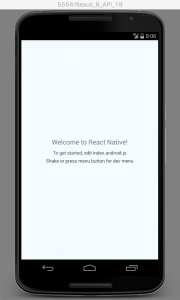
Connect your usb-debugging enabled Android device to your system and from the terminal run react-native run-android. It will start the blank app on your device.
Creating the view
/**
* Sample React Native App
* https://github.com/facebook/react-native
* @format
* @flow
*/
import React, { Component } from ‘react’;
import {
StyleSheet,
Text,
View,
TextInput,
Button,
TouchableOpacity
} from ‘react-native’;
export default class App extends Component {
constructor() {
super();
this.state = {
resultText: “”,
calculationText: “”
};
this.operations = [‘DEL’, ‘+’, ‘-‘, ‘*’, ‘/’];
}
calculationResult() {
const text = this.state.resultText;
this.setState({
calculationText: eval(text)
})
}
validate()
{
const text=this.state.resultText
switch(text.slice(-1)){
case ‘+’:
case ‘-‘:
case ‘*’:
case ‘/’:
return false
}
return true
}
_onPressButton(text) {
console.log(text);
if (text == ‘=’) {
return this.validate() && this.calculationResult(this.state.resultText);
}
this.setState({
resultText: this.state.resultText + text
});
}
operate(operation) {
switch (operation) {
case ‘DEL’:
console.log(this.state.resultText);
let text = this.state.resultText.split(”);
text.pop();
this.setState({
resultText: text.join(”)
});
break
case ‘+’:
case ‘-‘:
case ‘*’:
case ‘/’:
const lastChar=this.state.resultText.split(”).pop()
if(this.operations.indexOf(lastChar) >0 ) return
if(this.state.text==””)return
this.setState(
{
resultText: this.state.resultText+ operation
})
}
}
render() {
let rows = [];
let nums = [[1, 2, 3], [4, 5, 6], [7, 8, 9], [‘.’, 0, ‘=’]];
for (let i = 0; i < 4; i++) {
let row = [];
for (let j = 0; j < 3; j++) {
row.push(
<TouchableOpacity
key={nums[i][j]}
style={styles.btn}
onPress={() => this._onPressButton(nums[i][j])}
>
<Text style={styles.btnText}>{nums[i][j]}</Text>
</TouchableOpacity>
);
}
rows.push(<View key={i} style={styles.row}>{row}</View>);
}
let ops = [];
for (let i = 0; i < 5; i++) {
ops.push(
<TouchableOpacity
key={this.operations[i]}
style={styles.btn}
onPress={() => this.operate(this.operations[i])} >
<Text style={[styles.btnText, styles.white]}>
{this.operations[i]}
</Text>
</TouchableOpacity>
);
}
return (
<View style={styles.container}>
<View style={styles.result}>
<Text style={styles.resultText}>{this.state.resultText}</Text>
</View>
<View style={styles.calculation}>
<Text style={styles.calculationText}>{this.state.calculationText} </Text>
</View>
<View style={styles.buttons}>
<View style={styles.numbers}>{rows}</View>
<View style={styles.operations}>{ops}</View>
</View>
</View>
);
}
}
const styles = StyleSheet.create({
container: {
flex: 1
},
row: {
flexDirection: ‘row’,
flex: 1,
justifyContent: ‘space-around’,
alignItems:’stretch’
},
resultText: {
fontSize: 25,
paddingRight:10,
color: ‘black’
},
btnText: {
fontSize: 40,
color: ‘white’
},
white: {
color: ‘white’
},
btn: {
flex: 1,
alignItems: ‘center’,
alignSelf: ‘stretch’,
justifyContent: ‘center’
},
devider:{
borderRightColor:’yellow’,
borderBottomColor:’yellow’,
borderRightWidth : 0.5,
borderBottomWidth : 0.5
},
result: {
flex: 2,
backgroundColor: ‘white’,
justifyContent: ‘center’,
alignItems:’flex-end’
},
calculation: {
flex: 1,
backgroundColor: ‘white’,
justifyContent: ‘center’,
alignItems:’flex-end’
},
calculationText: {
fontSize: 50,
paddingRight:10,
color: ‘black’
},
buttons: {
flex: 7,
flexDirection: ‘row’
},
numbers: {
flex: 3,
padding :1,
backgroundColor: ‘#1e2326’
},
operations: {
flex: 1,
justifyContent: ‘space-around’,
alignItems:’stretch’,
backgroundColor: ‘#454e54’
}
});
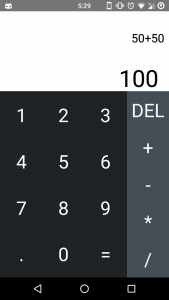
Your Calculator App is ready. You can open the terminal run react-native run-android to view
Cyblance Technologies is a React JS development services company that is an expert in developing React applications. Being an Android & iOS app development company we have created various applications with stunning UI both using React Native and native frameworks.