



How to Create a Multilingual Website Using Google Cloud API?
What is a multilingual website?
In the ideal world, A website allows its customer to translate the content of the website from one language to various other languages. The ideal website caters more than one country and geographic region coverage. Unfortunately, Small businesses and startup can’t afford multiple language translation. So here is an outstanding solution that translates the website into multiple languages.
Here, the outstanding solution is Google C API. Google Cloud API translate the website content instantly into 60+ languages.
Now, we will look at the process, how to make website multilingual using Google Cloud API.
Set up and requirements
Before starting the translation it requires to set up the project by subscribing to the Google cloud platform by submitting the various details. The project id need be a novel name across all Google cloud projects.
Enable the translation API
After setting up the project, The user must enable the translation API in the API Manager.

Activate Cloud Shell
Google Cloud Shell is a command line environment operating in the Cloud. This Debian-based virtual machine is loaded with all the development tools you’ll require (gcloud,GitHub and others) and allows a determined 5GB home directory. We’ll utilize Clou
d Shell to complete our request to the Translation API.

To begin with, Cloud Shell, select the “Activate Google Cloud Shell” icon in the top right-hand edge of the header bar.
Create an API Key
To send a request to the Translation API using curl we must generate an API key to pass in our request URL. To create an API key, operate to the API Manager section of your project dashboard:
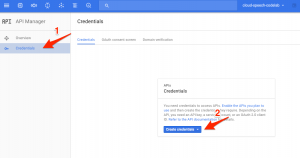
Copy your API Key to your clipboard then save it in Cloud Shell using the following line of code. Be sure to substitute YOUR_API_KEY with the key from your clipboard.
Translate the text by detecting the language.
In this example, you will translate the string “My name is John” into Spanish. Strain the text to be translated, along with the API key context variable you saved earlier, to the Translation API with the following curl command:
TEXT=”My%20name%20is%20John”
curl “https://docs.cloud.google.com/translate/docs/reference/rest“
Your response should look like the following:
{
“data”: {
“translations”: [
{
“translatedText”: “Mi nombre es John”,
“detectedSourceLanguage”: “en”
}
]
}
}
In the response, you can see that the translated text as well as the source language that the API detected.
In addition to translating text, the Translation API also lets you detect the language of the text. Here is an example, you will detect the language of two strings. Pass the text to be examined, along with the API key environment variable you saved earlier, to the Translation API with the following curl command:
TEXT_ONE=”Meu%20nome%20é%20John”
TEXT_TWO=”日本のグーグルのオフィスは、東京の六本木ヒルズにあります”
curl “https://translation.googleapis.com/language/translate/v2/detect?key=${API_KEY}&q=${TEXT_ONE}&q=${TEXT_TWO}”
Your response should look like this:
{
“data”: {
“translations”: [
{
“translatedText”: “Mi nombre es John”,
“detectedSourceLanguage”: “en”
}
]
}
}
The languages passed by this sample are “pt” and “Ja”. These codes are the ISO-639-1 identifiers for Portuguese and Japanese.
For more details click here.